Design & Productivity
How to Compress an Image to 100 KB or 200 KB (Step by Step)
Add the image, tick Limit file size to, enter 100 or 200 KB and press Compress. What the Momentix Image Compressor does, step by step, and its limits.

Written by Ahad NoorPublished 8 min read
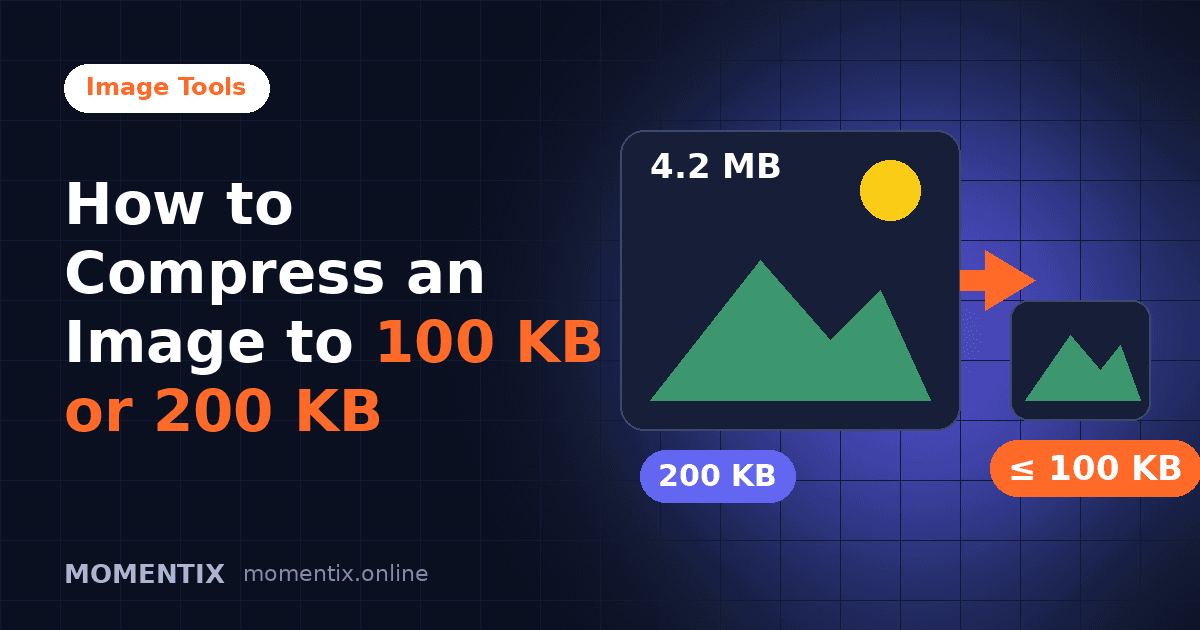
Upload forms often ask for an image under 100 KB or 200 KB. The image compressor has an option for exactly that: you give it a maximum file size and it works towards it, lowering the quality first and, if that is not enough, making the picture smaller in pixels.
This guide lists the steps in the order you click them, explains what the tool does when you set a limit, and says plainly what it cannot promise. Everything described about the tool was checked against its source code, and the numbers are arithmetic on pixel sizes. It is the overview of the image tools in this blog.
Contents
How do you compress an image to 100 KB or 200 KB?#
These are the steps in the tool, in order. Everything runs from one screen.
- Open the Momentix compressor and drag your images onto the drop area, or choose them from your device. You can add up to 100 images at a time, and each file can be up to 60 MB. Files that are not images are rejected with a message.
- Leave “Output format” on Keep original format, or choose JPG, PNG, WebP or AVIF. WebP and AVIF appear only if your browser can save them.
- Optionally set “Longest side” to 3840, 2560, 1920, 1280 or 800 pixels. The default is the original size.
- Tick Limit file size to, type 100 or 200, and leave the unit on KB (the field starts at 200). Use MB for larger limits.
- Press Compress. A progress window shows each file as it is processed.
- Read the result row: it shows the original size, the new size and the percentage saved.
- Press Download for one file, or Download all (ZIP) when you compressed more than one. Compressed files get “-compressed” added to their name.
Worked example: a limit of 100 KB
Assumptions: The limit is entered as 100 with the unit KB; the tool multiplies by 1,024.
- 100 KB = 100 × 1,024 = 102,400 bytes.
- 200 KB = 200 × 1,024 = 204,800 bytes.
- 1 MB = 1,024 × 1,024 = 1,048,576 bytes.
A result of 102,400 bytes or less meets a 100 KB limit; the result list shows it as “100 KB” or lower.
What the compressor does when you set a limit#
Without a limit the tool simply saves the image at the quality on the slider (10 to 100, starting at 75). With a limit it searches for a result that fits:
- It tries to find the highest quality that keeps the file within the limit. The quality slider acts as the highest value it will try (and never lower than 30%), so a lower slider setting makes the search start lower.
- If even the lowest quality is too big, it makes the picture smaller: both width and height are multiplied by 0.85 (a 15% shrink on each side), then it searches for the quality again.
- It repeats this up to six times in total (at most five shrinks). On the sixth try it returns what it has, even if the file is still over the limit.
- JPG and WebP use the quality directly. For PNG the quality controls colour reduction (fewer distinct colours compress better) rather than a lossy picture codec.
- If the result is not smaller than the original, is in the same format and you did not set a limit, the tool keeps the original file and shows “Already optimised – original kept”.
| Step | Size in pixels |
|---|---|
| Start | 4000×3000 |
| After shrink 1 | 3400×2550 |
| After shrink 2 | 2890×2168 |
| After shrink 3 | 2457×1843 |
| After shrink 4 | 2088×1567 |
| After shrink 5 | 1775×1332 |
Five shrinks take 4000×3000 down to 1775×1332, about 20% of the original pixel count. The table is the arithmetic of the 15% rule; whether a particular image needs any shrinking depends on the image.
Why a smaller “Longest side” helps at 100 KB#
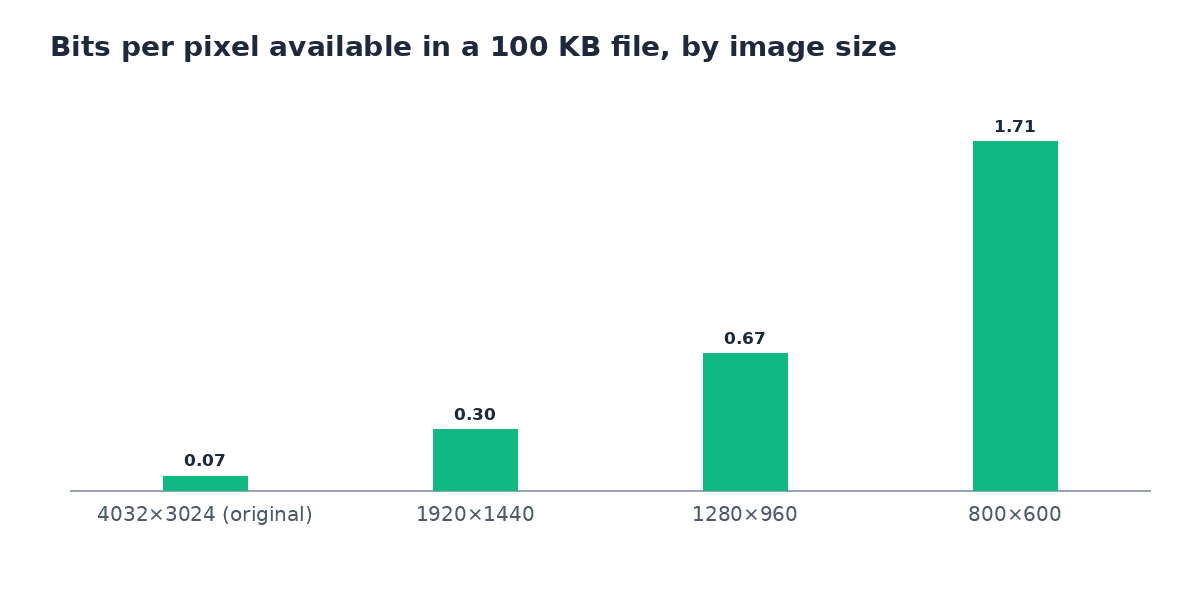
A file limit is a budget of bits. Divide the budget by the number of pixels and you get the bits available for each pixel. The fewer bits each pixel gets, the more detail the compressor has to throw away.
| Image size | Pixels | Bits per pixel at 100 KB | Bits per pixel at 200 KB |
|---|---|---|---|
| 4032×3024 (original) | 12,192,768 | 0.067 | 0.134 |
| 1920×1440 (longest side 1920) | 2,764,800 | 0.296 | 0.593 |
| 1280×960 (longest side 1280) | 1,228,800 | 0.667 | 1.333 |
| 800×600 (longest side 800) | 480,000 | 1.707 | 3.413 |
A 4032×3024 image squeezed into 100 KB has only 0.067 bits per pixel; at a longest side of 1280 pixels it has 0.667, about ten times as many. This is arithmetic, not a measurement of any particular photo. It explains why choosing a smaller “Longest side” before compressing often gets a result under the limit with less loss of visible quality than lowering the slider alone.
| Original size | 3840 px | 2560 px | 1920 px | 1280 px | 800 px |
|---|---|---|---|---|---|
| 4032×3024 | 3840×2880 | 2560×1920 | 1920×1440 | 1280×960 | 800×600 |
| 6000×4000 | 3840×2560 | 2560×1707 | 1920×1280 | 1280×853 | 800×533 |
| 3840×2160 | 3840×2160 | 2560×1440 | 1920×1080 | 1280×720 | 800×450 |
| 1920×1080 | 1920×1080 | 1920×1080 | 1920×1080 | 1280×720 | 800×450 |
What happens to your files#
The compression code reads your file with the browser, draws it on a canvas, and builds the result in memory. The image workbench and the image engine contain no network calls (no fetch, XMLHttpRequest, beacon or form upload), so the compression itself does not send your image anywhere. This statement is about the compressor's own code; it says nothing about other scripts on the page.
The results exist only in the browser tab until you download them, and they are discarded when you press “Start over” or close the page.
More image tools on Momentix#
If you need an exact width and height rather than a file size, use the image resizer. To change the format, for example PNG to WebP, use the image converter. Each of them runs from the same drop area and download buttons.
Before you upload a compressed image
- Read the size in the result row, not just the limit you typed.
- Check the picture at full size for the detail you need, such as text or faces.
- Keep the original file in case you need a larger version later.
- If the form asks for a specific format, set “Output format” before you compress.
Mistake: Typing 100 but leaving the unit on MB.
Instead: 100 MB is far larger than the file; check that the unit says KB.
Mistake: Assuming the result is always under the limit.
Instead: After six tries the tool returns its result even if it is above the limit. Read the size shown.
Mistake: Compressing the same file again and again.
Instead: Each lossy pass loses detail. Start again from the original with a lower quality or a smaller longest side.
Try the tool
Image Compressor
Add images, set a quality or a maximum file size in KB or MB, and download the compressed files one by one or as a ZIP.
Open the Image CompressorMore guides and calculators on this topic#
This guide is the overview for Image tools. The tools below work from the same drop area:
Other topics: How to Calculate the Days Between Two Dates (With Examples), How Loan Repayments Work: Payment, Interest and Term Explained, UK Take-Home Pay Explained for 2026/27: Tax, NI, Student Loans and Pensions, Percentages Explained: Of, Increase, Decrease and Reverse.
Frequently asked questions#
Add the image to the compressor tool, tick “Limit file size to”, enter 100 and keep the unit on KB, then press Compress. If the result is still above 100 KB, choose a smaller “Longest side” and try again from the original.
Follow the same steps with 200. The field already starts at 200 once you tick the option, and the unit is KB.
The tool counts 1 KB as 1,024 bytes, so 100 KB is 102,400 bytes and 200 KB is 204,800 bytes.
Yes. You can add up to 100 images at a time, each up to 60 MB, and download them one by one or as a ZIP file.
The tool tries up to six times and returns its result on the last try even if it is above the limit. Choose a smaller “Longest side”, lower the quality, or start again from the original file.
The compression code, in the image workbench and the image engine, makes no network request: the file is read, drawn on a canvas and saved as a new file in your browser. This describes that code only, not other scripts on the page.
Ahad Noor
Ahad Noor builds and maintains Momentix, including its calculators, converters and the guides on this blog.
Each guide is checked against the matching Momentix tool, so the worked examples show the same figures the tool gives for the same inputs.